 SuperNotch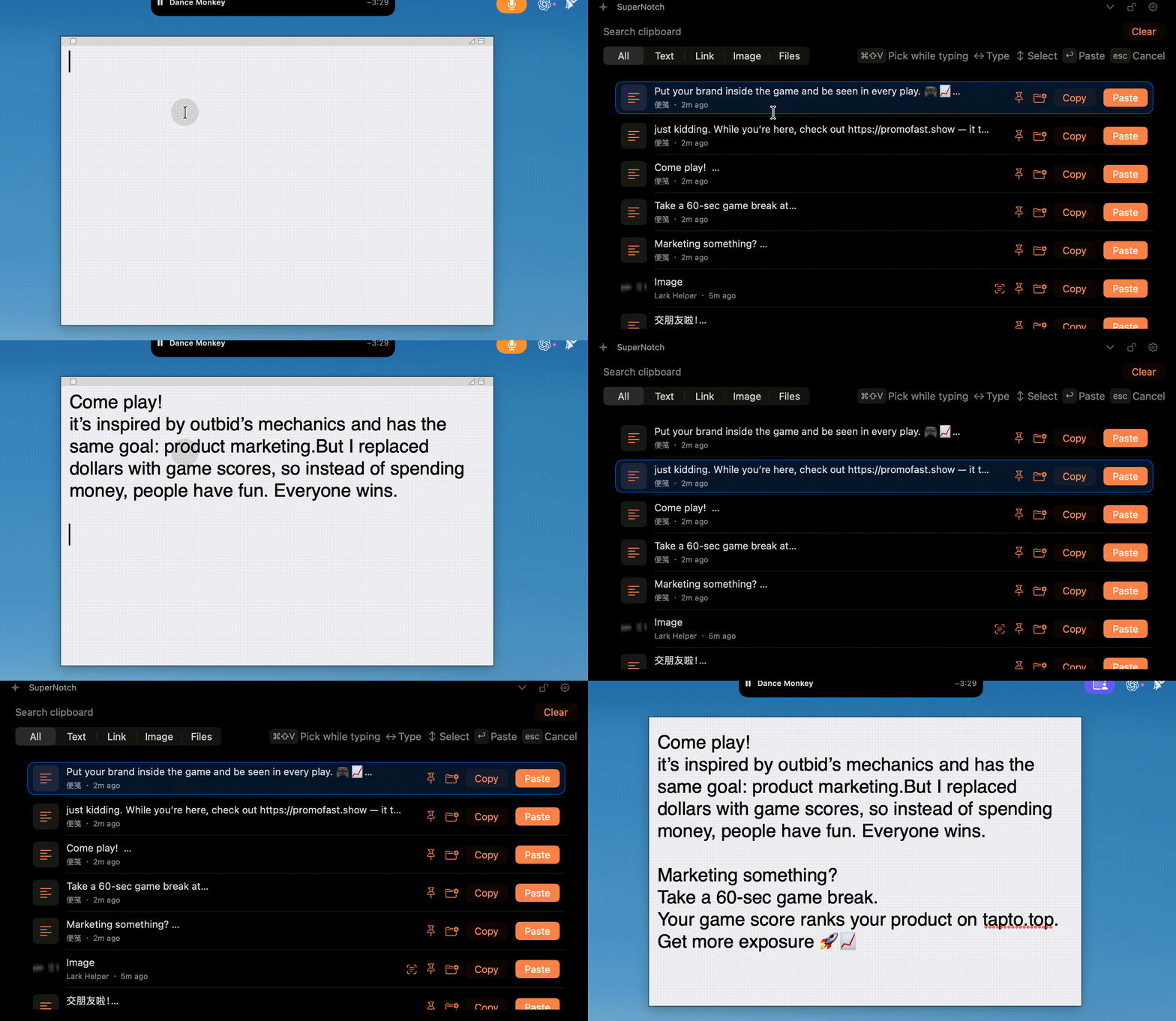
Stop copying the same thing twice.
A clipboard manager keeps a history of items copied while it is running. That helps when a second copy replaces the first, or when you need the same link in several apps. SuperNotch brings that history into the notch alongside the rest of your Mac toolkit.
- Writing a message: retrieve the link you copied before copying a quotation.
- Working across documents: keep several pieces of text available instead of returning to each source.
- Reusing project material: pin a useful entry and group related items so you can find them again.
Find and reuse an earlier copy.
- Open Clipboard History in SuperNotch and keep the feature enabled while you work.
- Copy text, a link, an image or a file in another app. Return to the history to see the recorded item.
- Use Search clipboard to filter entries. Search can match their displayed content, source app or group name.
- Choose Copy to put an entry back on the clipboard, then paste it into the destination. Direct Paste is also available when the required macOS access is granted.
Use the pin control for items you reuse. The group control lets you assign a name such as “Project links.” For an image containing text, choose Recognize text, review the result and copy the recognized text.
Does Mac already have clipboard history?
macOS Tahoe and later include clipboard history in Spotlight. Open Spotlight with Command–Space, then use Command–4 to browse the clipboard. On earlier macOS versions, this particular Spotlight history interface is unavailable. See Apple’s clipboard instructions for version-specific guidance.
Try the built-in option if browsing recent copies is all you need. Choose SuperNotch when you want clipboard history in the notch, named groups, pinned entries and image text recognition in the same toolkit as recording and screenshots.
What gets saved, and what does not?
Clipboard history and captured images are stored on your Mac. Configure the history limit and excluded apps in SuperNotch’s settings. Clear removes unpinned entries; you can also delete individual records.
The feature records new clipboard changes while enabled. It cannot reconstruct an item that was overwritten before monitoring started, and it is not a cloud sync or backup service. Image text recognition can make mistakes, so check the result before reusing it. See the privacy policy for the app’s network and diagnostic boundaries.
Common questions
Can I recover text copied before I installed SuperNotch?
No. SuperNotch can only show items it recorded while clipboard monitoring was enabled.
Can I keep images and copied files as well as text?
Yes. The history supports text, links, images and file references. A copied file entry still depends on the original file being available.
Will clearing history remove pinned items?
The Clear action removes unpinned records. Individual entries can be deleted separately.
Is this a separate subscription?
No. Clipboard History is included in SuperNotch’s lifetime toolkit. You can try the app free for three days before buying.
One useful feature. A whole toolkit.
This feature is included in SuperNotch’s 24-tool bundle. The first 50 buyers pay $5; the regular price is $19. One lifetime purchase covers two personal Macs and future versions. Check the pricing page for the current offer.
See pricing and try SuperNotch