You are writing, coding, or reading, and a song you want to skip starts playing. Opening Spotify or Apple Music just to find one button breaks your flow. MacBook notch music controls put those small actions near the top of your screen.
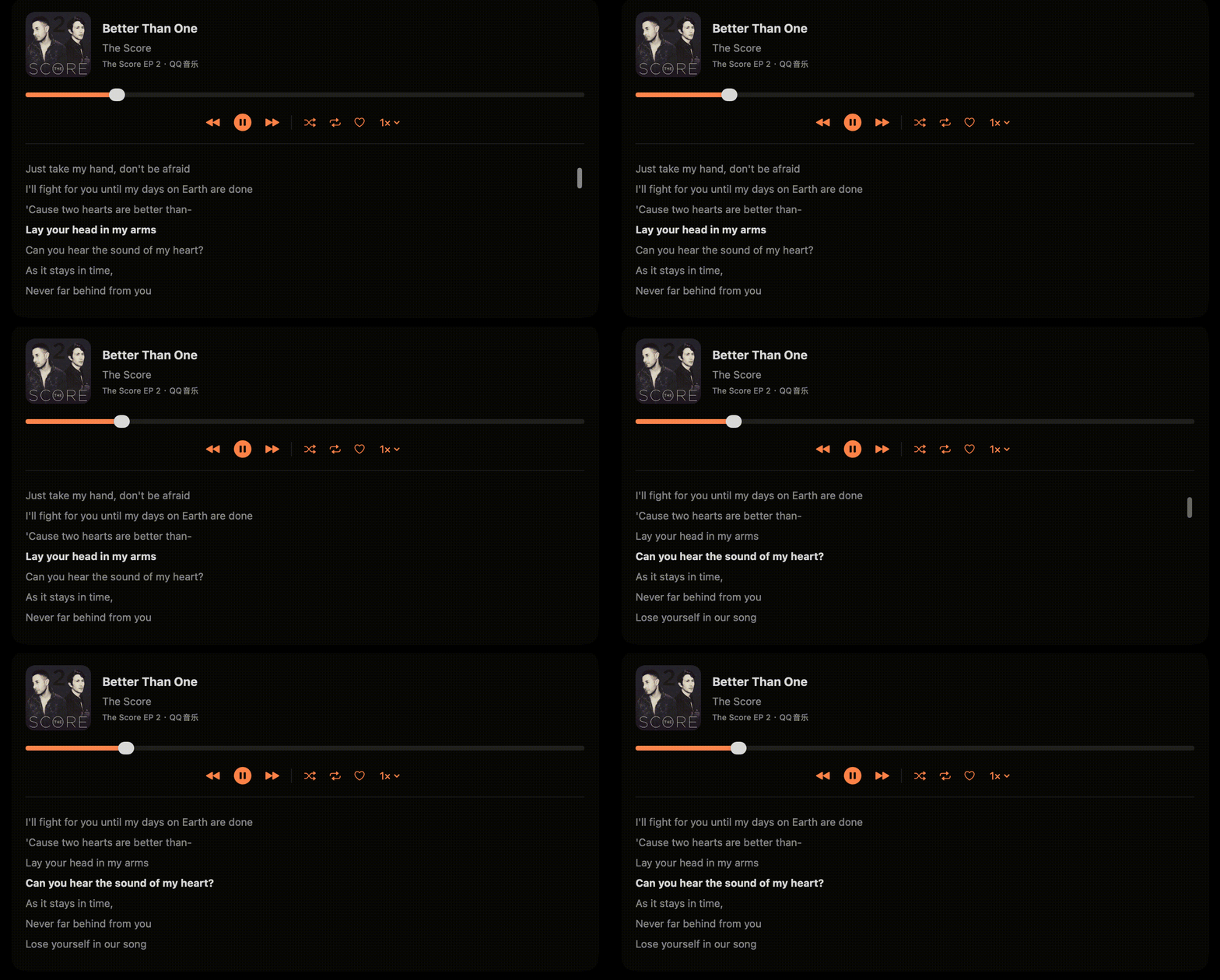
SuperNotch’s Now Playing view brings track information, playback controls, and available lyrics into that space. This guide is written by the maker of SuperNotch, and starts with the built-in macOS option so you can choose what you actually need.
Start with macOS’s built-in music controls
Click Control Center in the menu bar and open Now Playing. For a supported active media session, macOS provides playback controls, including pausing, skipping, and moving through a track. See Apple’s Control Center guide.
That is a good place to start if all you need is an occasional pause. A notch utility is useful when you want track information and lyrics together, or want music controls alongside other tools you use throughout the day.
Set up Spotify or Apple Music notch controls
SuperNotch runs on macOS 15 or later, on Apple Silicon and Intel Macs. Download it from the SuperNotch website and start the free three-day trial, or activate your purchased license.
Start a track. Open the Spotify desktop app or Apple Music and play something. An open app with no active track may not provide useful playback information.
Open Now Playing. Expand SuperNotch and select the music feature. Check the title, artist, and player shown in the panel.
Allow control when requested. If macOS asks whether SuperNotch may control Music or Spotify, allow it to enable that app’s playback fallback.
SuperNotch first follows the active macOS media session. When needed, it also checks the running Spotify and Music desktop apps while the music view is open. That fallback can require macOS Automation permission; it is not permission to access your entire disk.
What you can do without switching apps
Pause, resume, and skip tracks
The panel shows artwork and track details with previous, play/pause, and next controls. It controls the player that is actually playing your music; SuperNotch does not replace Spotify or Apple Music, or supply its own streaming catalog.
Move to a point in the track
Use the progress slider when the selected player exposes seeking. Support depends on that player’s media session. An unavailable slider is not a promise that every source can be scrubbed.
Show lyrics in your MacBook notch
When matching lyrics are available, they appear beside the music information. Timed lyrics follow the playback position and highlight the current line. SuperNotch looks up lyrics online using track metadata, including title and artist; availability and timing depend on the match. Instrumental tracks and songs without a matching entry may show no lyrics.
Additional controls, such as shuffle and repeat, also depend on the player. Treat the controls your current source supports as the useful set, rather than assuming every music or video app behaves identically.
If the track or controls do not appear
The panel says “Nothing Playing”
Start a track in the original app, then reopen Now Playing in SuperNotch. Check whether macOS Control Center sees the media session. For Spotify and Music, also check Automation permission if you declined an earlier request. Other sources, including browser videos, depend on the playback information they expose to macOS.
Spotify or Music does not respond
Open System Settings → Privacy & Security → Automation and check the relevant permission under SuperNotch. If a permission request appears, approve the app you want to control. Apple explains this in its app automation instructions.
The panel shows a different player
Check the source beside the track information. If several apps are playing, pause the one you do not want and resume your intended player. Now Playing follows an active source; it is not a simultaneous mixer for every app.
Music works, but lyrics are missing
Check your internet connection and the song’s title and artist. A lyric lookup can fail or have no matching result while playback controls continue to work. A missing lyric is not a reason to reinstall the app.
Common questions
Can I use this on a Mac without a notch?
Yes. SuperNotch can use a floating panel on Macs without a physical notch and on external displays. Choose the floating presentation and the display you want in its appearance settings.
Will this control every browser video?
Not necessarily. SuperNotch follows macOS media information, with dedicated Spotify and Music fallback. A browser or website must expose a usable session, and available commands vary. Try your usual source during the trial.
Do I need a whole notch toolkit just for music?
For a quick pause, start with Control Center. If you also want screenshots, clipboard history, and Smart Search close at hand, a shared panel can be useful. The MacBook notch app guide explains how to choose based on the tasks you need.
Keep music controls close to your work.
Try Now Playing and lyrics in SuperNotch with your own music player during the free three-day trial. No card or email verification is needed to start.
Try SuperNotch