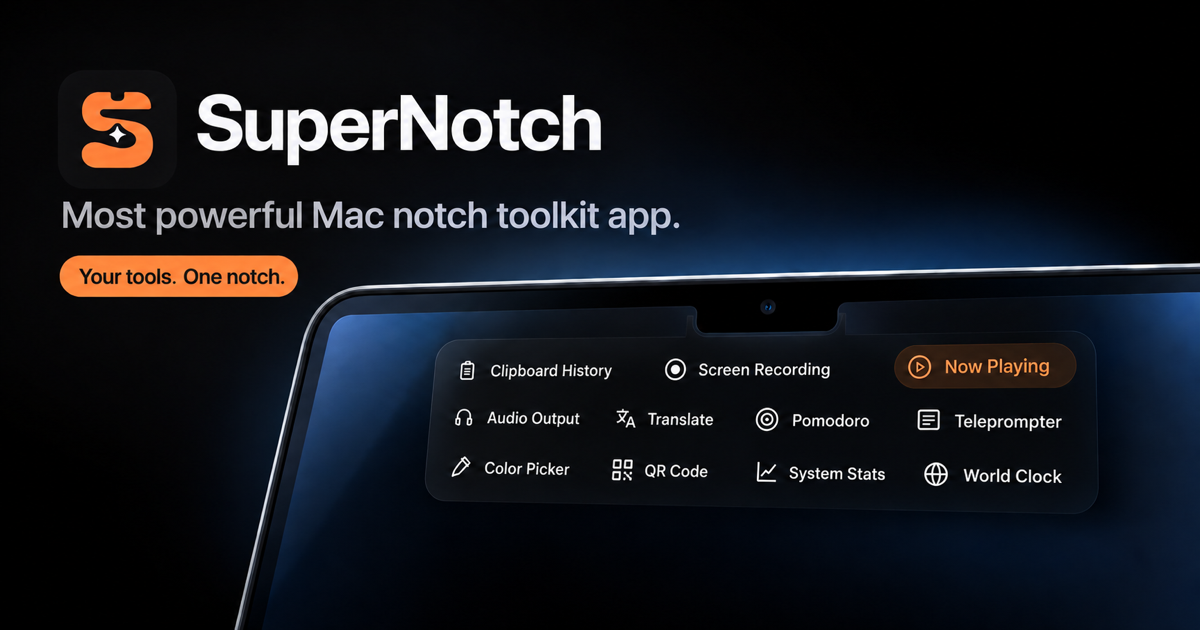
Most interruptions on a Mac are not difficult tasks. They are tiny ones: finding something you copied, changing the audio output, checking another time zone, starting a timer, or taking a quick screenshot. The task may take five seconds, but opening an app, finding the right window, and returning to your work costs attention every time.
Turn unused space into a working surface
The MacBook notch is always at the top of the display, but most of the area around it does very little. SuperNotch is designed to use that predictable location as a home for small tools. Move to the top of the screen, open the tool you need, finish the job, and return to what you were doing.
Your useful tools are scattered across apps, menu bar items, system settings, and browser tabs. Each one creates another context switch.
The goal is not to replace every full-size app. It is to make frequent, lightweight actions available in one place. SuperNotch is being built as a native Swift app, so the interface and its tools feel at home on macOS.
Find, reuse, and translate text without losing your place
You copy a link, then copy a sentence, and suddenly the link is gone. Or you type the same support reply, introduction, address, or product description several times a week. These are small frustrations, but they happen constantly.
Clipboard History keeps recent text, links, images, and files searchable, so an older item is still available after you copy something new. When a piece of text is intentionally reusable, save it in Text Snippets and paste it again without searching through documents or old messages.
When the text needs to cross a language boundary, open Translate, let it detect the source language, and copy or listen to the result. Together, these tools turn the notch into a short path between finding text and using it.
- Clipboard HistoryRecover something you copied earlier.
- Text SnippetsKeep common replies ready to paste.
- TranslateTranslate, copy, or speak a result.
Keep music and Mac controls within reach
Changing a song should not require finding the music app. Switching from MacBook speakers to headphones should not become a trip through Control Center. SuperNotch keeps these actions near the hardware they relate to.
Now Playing & Lyrics shows the current track, playback controls, progress, and the lyric being sung. Audio Output lets you move sound to the right device. System Controls brings volume, display brightness, keyboard backlight, mute, and Keep Awake into the same compact surface.
Pause or skip a track from Now Playing.
Switch sound from the MacBook speakers to AirPods.
Lower brightness or keep the Mac awake without opening Settings.
Protect your focus and understand where the day went
Focus often breaks because the tools meant to help you focus become distractions themselves. A large task manager can invite planning instead of doing. A separate timer can disappear behind other windows.
Use Pomodoro to reserve a focused block for one task. Use Timers for a short countdown. Keep a deliberately simple Todo list for adding, completing, and deleting the next few actions. None of them needs to become another window in your workspace.
At the end of the day, Screen Time shows how long you used the Mac and which apps received that time. Water Reminder adds a lightweight nudge during long sessions, while Daily Quote can provide a small reset when you want one.
- PomodoroGive one task an uninterrupted block.
- TimersStart a quick countdown in seconds.
- TodoKeep the next actions intentionally simple.
- Screen TimeSee which apps actually received your day.
Capture, record, and explain what is on your screen
A screenshot is enough when you need to show one state. A recording is better when the movement matters. A camera check helps before a call, and a script helps when the message needs to be clear.
Screenshots captures a selected area. Screen Recording goes further: record a region with microphone audio and camera video, zoom into clicks so viewers can follow the action, then make simple edits. It is useful for product demos, bug reports, tutorials, and async explanations.
Before a meeting, Camera Mirror lets you check framing without entering a call. When you are presenting or recording a longer message, Teleprompter keeps your script visible and scrolls at your pace.
Check your framing, open your script, record the relevant part of the screen with voice and camera, then use click zooms to make the important action obvious.
Finish small jobs without opening another browser tab
Some jobs are too small to deserve an app, yet they still interrupt the work in front of you. SuperNotch groups these utilities together so the answer appears where you already know to look.
Create or scan a link with QR Code. Convert length, mass, temperature, data, and other measurements with Unit Conversion. Currency Conversion uses the latest available exchange rate rather than a fixed sample value.
For visual work, Color Picker can choose a color from the screen and expose its HEX, RGB, and HSL values. These are not tools you need open all day. That is exactly why they benefit from sharing one compact home.
- QR CodeGenerate, copy, save, or scan a code.
- Unit ConversionMove between common measurement systems.
- Currency ConversionConvert with the latest available rate.
- Color PickerPick from the screen and copy the exact value.
See useful context without opening a dashboard
Some information is valuable because it is glanceable. A separate world clock or system monitor window can interrupt you when you only need a quick answer.
World Clock keeps several cities together when you work across time zones. System Stats surfaces CPU, memory, free disk space, network activity, and battery information.
For independent makers, Revenue Dashboard brings connected payment numbers into view while credentials remain protected in macOS Keychain. The point is the same in every case: see the number you need, then get back to work.
Keep only the tools that are useful to you
A toolkit becomes noisy when every tool demands attention. SuperNotch lets you enable the modules you use, hide the ones you do not, and arrange the frequent ones first. You can also choose the theme, surface, layout, accent color, and application language.
You do not need all 23 tools
A writer might keep Clipboard History, Snippets, Translate, Todo, and Pomodoro. A creator might prefer Screen Recording, Screenshots, Camera Mirror, Teleprompter, and Color Picker. A remote worker may keep World Clock, Now Playing, Audio Output, and System Controls. The useful setup is the one that removes friction from your own day.
SuperNotch requests relevant permissions when a feature is used. Clipboard history and app-usage records stay on the Mac, while connected dashboard credentials are stored in Keychain. In a local idle measurement on a MacBook Pro with M2 Pro and 32 GB of memory, the current build averaged 1.2% CPU with a 56 MB physical footprint; actual usage varies by device and enabled features.
Give the notch a useful job.
Explore the current SuperNotch toolkit and choose the small actions you want to keep at the top of your Mac. SuperNotch is currently in development.
Explore all 23 tools